
The "Slideshow +" module allows you to display a slideshow on the homepage or in any other required place of your online store. In the slideshow, you can add banners with text information "Horizontal full-width or vertical", as well as upload images across the full width of the slide.
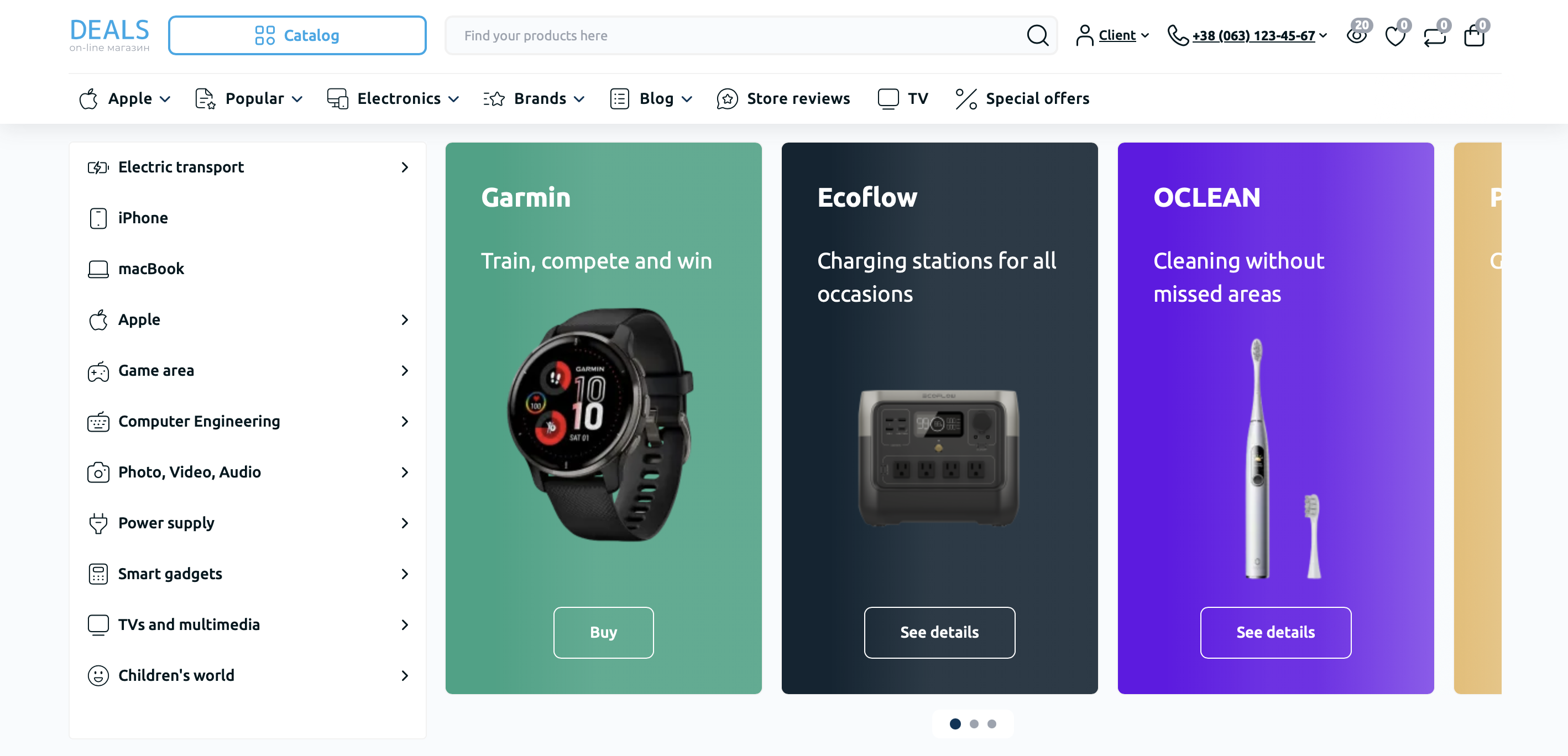
To create a slideshow, go to "Banners" - "Slideshow +" and click the "Add" button in the upper-right corner of the module settings, as shown in the illustration below.
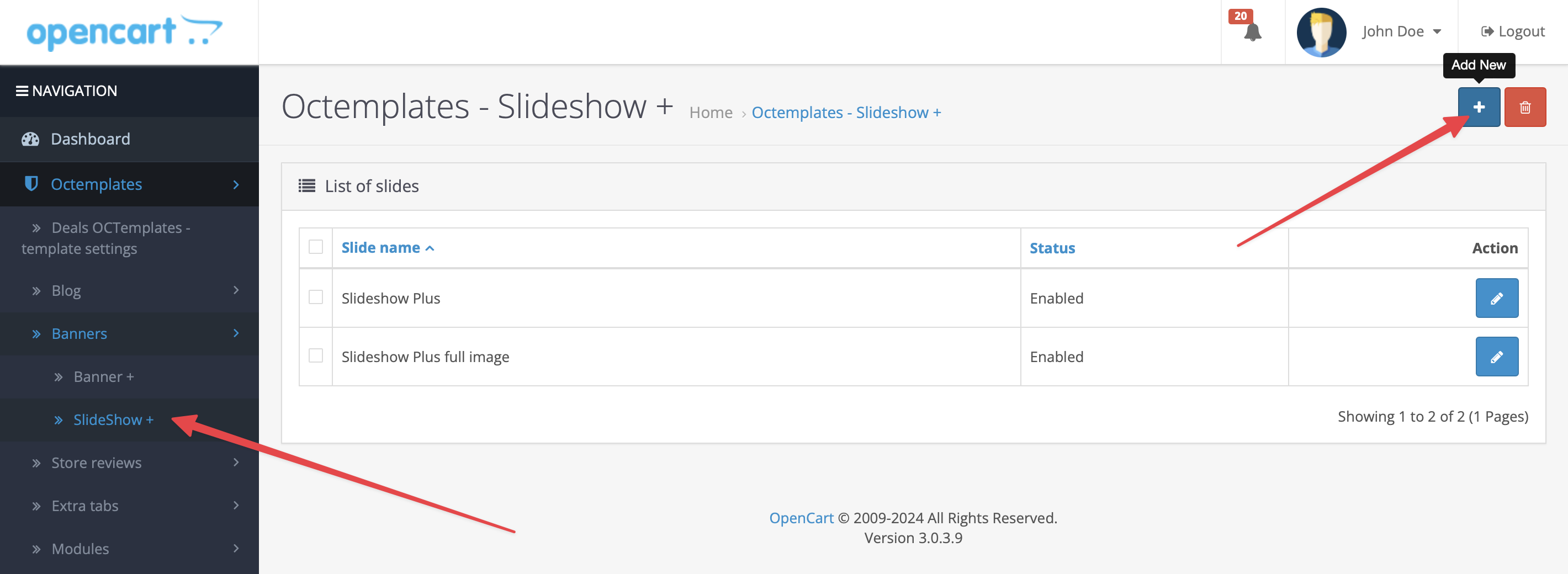
After that, you will be taken to the "Add slide" page. The following settings will be available here:
- "Status" — allows you to enable or disable the module;
- "Slide name" — required field, enter the desired name of the future slideshow;
- "Image as background" — allows you to upload background images for desktop and mobile devices, which will be stretched to the full width and height of the slide. If this setting is enabled, the fields for text information and buttons will become unavailable and will not be displayed in the slideshow.
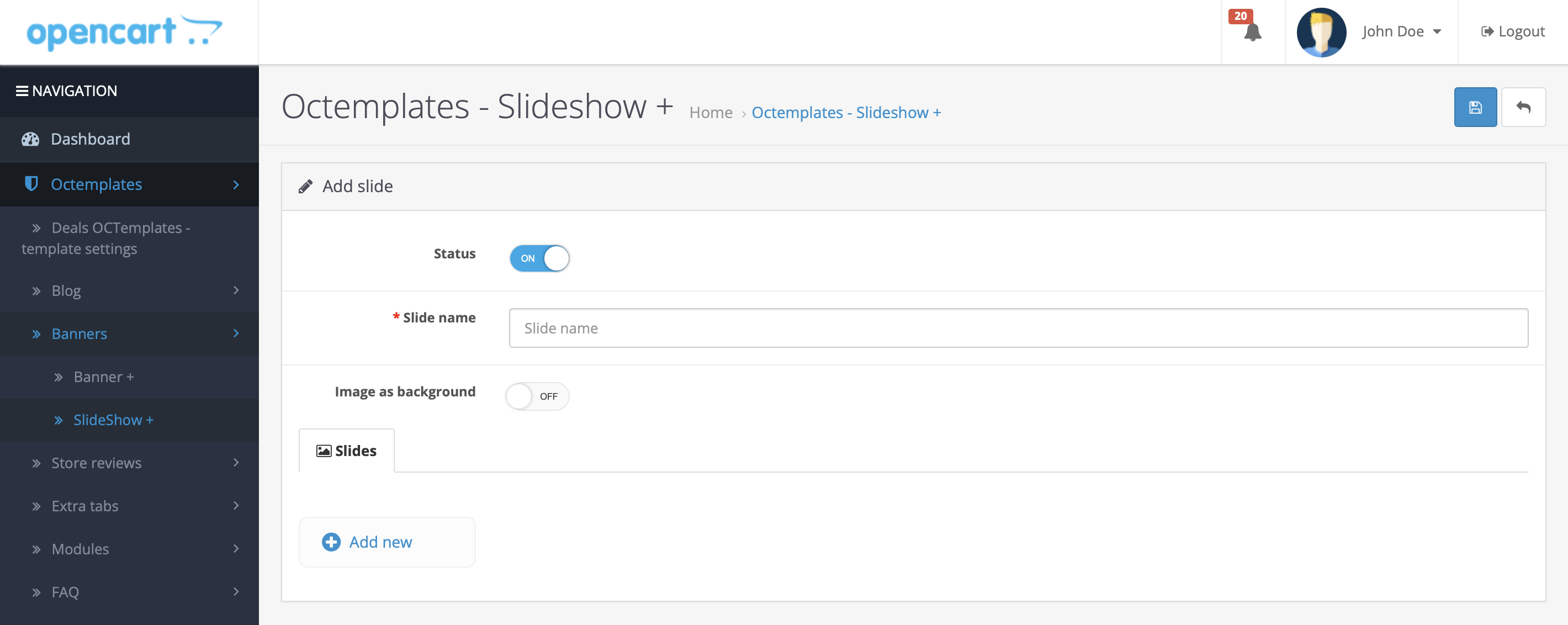
Below there is a "Slides" section where you can add the required number of slides for the "Slideshow +" module. Attention! If you have enabled vertical slide display, it is recommended to add at least four slides.
To add a slide, click the "Add" button. The following settings will be available here:
- "Title" — allows you to set the slide title;
- "Button text" — allows you to enter custom button text "Learn more", "Go to", and so on;
- "Description" — allows you to enter a short promo text for the slide;
- "Link" — allows you to enter the slide button link;
- "Image" — allows you to add an image to the slide. If the "Image as background" setting is enabled, the recommended image size is: width 1170 pixels, height 410 pixels;
- "Image for mobile" — allows you to add a background image for mobile devices if the "Image as background" setting is enabled. Recommended image size: width 380 pixels, height 640 pixels;
- "Sort order" — allows you to sort the slides in the required order;
- "Block background" — allows you to set the slide block background;
- "Title text color" — allows you to set the color of the slide title text;
- "Description text color" — allows you to set the color of the slide description promo text;
- "Button text color" — allows you to set the color of the slide button text;
- "Button border color" — allows you to set the color of the slide button border;
- "Button text color on hover" — allows you to set the color of the slide button text on hover;
- "Button background on hover" — allows you to set the background color of the slide button on hover.
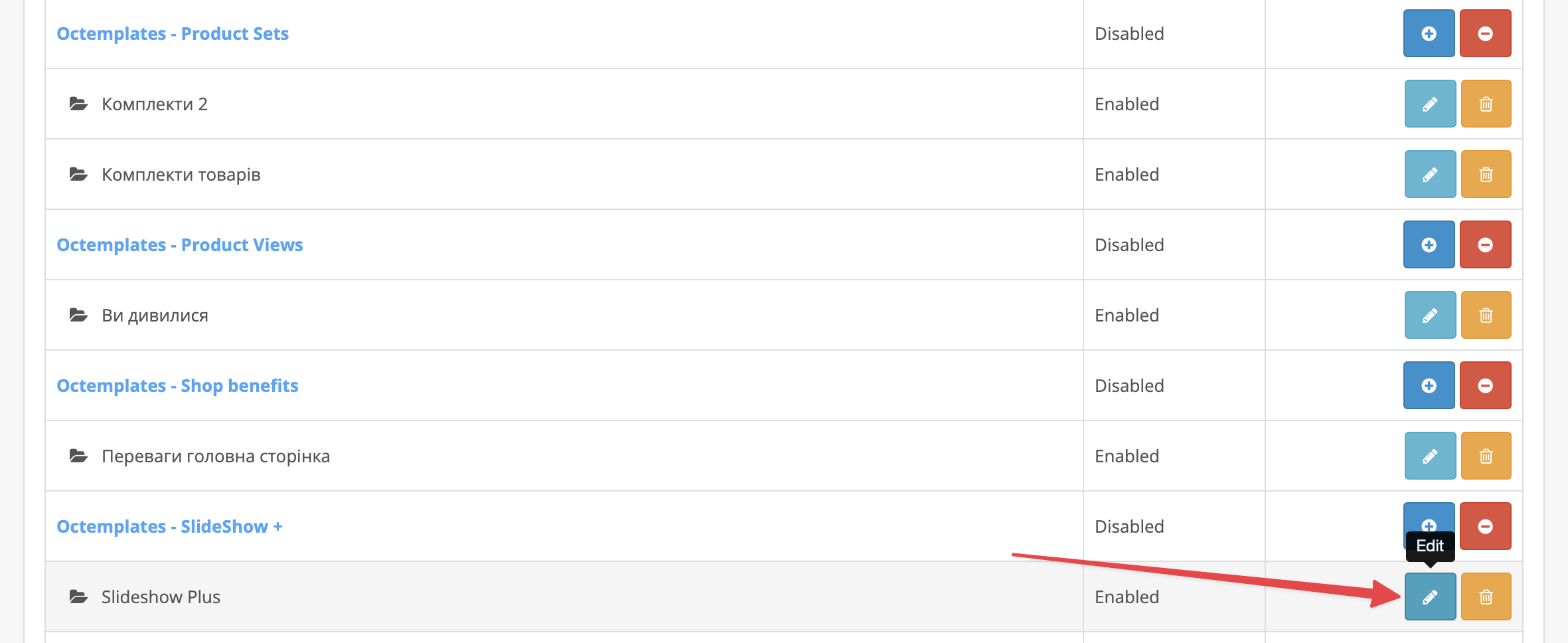
To configure the "Slideshow +" module itself, go to "Modules / Extensions" - "Modules / Extensions" and click the "Edit" button next to the module name.
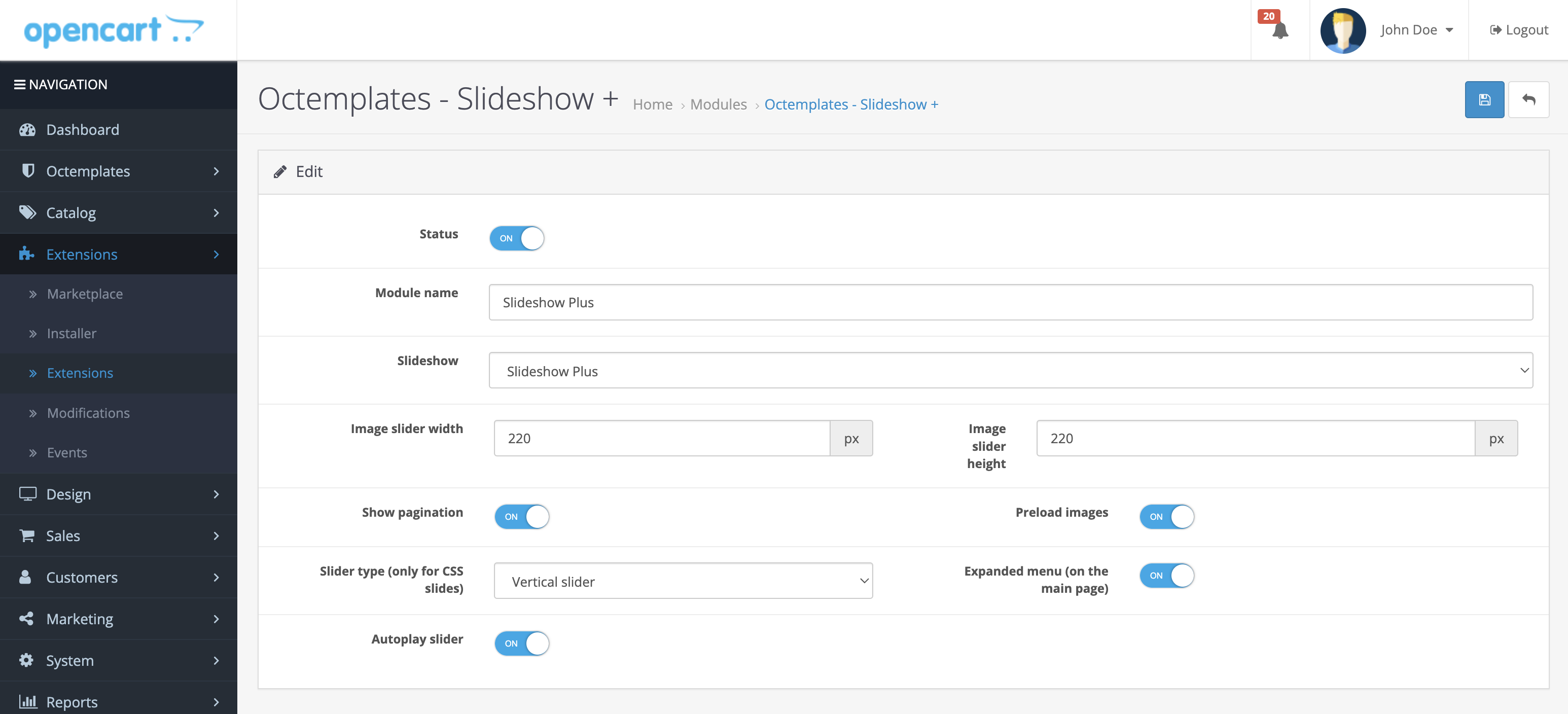
The following settings will be available in the window that opens:
- "Status" — allows you to enable or disable the module display;
- "Module name" — allows you to enter the system name of the module;
- "Slideshow" — allows you to select a pre-created slideshow block made according to the instructions above;
- "Slider image width" — allows you to set the slide image width;
- "Slider image height" — allows you to set the slide image height;
- "Show pagination" — allows you to enable or disable pagination display in the slideshow block;
- "Image preload" — allows you to enable or disable preloading of slideshow images;
- "Slider type «Only for CSS slides»" — allows you to select horizontal "Full width" or vertical slide display type;
- "Take expanded menu into account «On the homepage»" — allows you to take the enabled expanded menu on the homepage into account;
- "Slider autoplay" — allows you to enable or disable slide autoplay.
After that, go to "Design" - "Layouts" and enable the "Slideshow +" module display in the required place.
Write a comment