
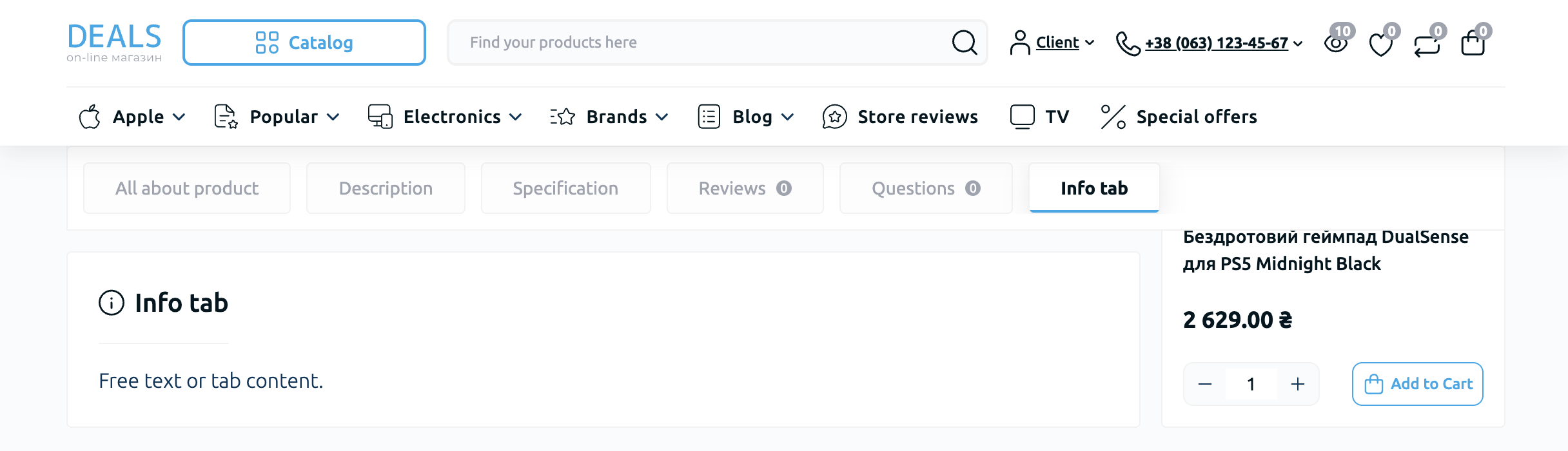
The "Product Tabs" module allows you to display additional tabs on the "Product Card" page. Additional tabs can be used to insert videos, extra product specifications, and other content.
To use the module, make sure that the "Product Tabs" module is activated in the module list. To do this, go to the module list and click the "Activate" button next to the extension name.
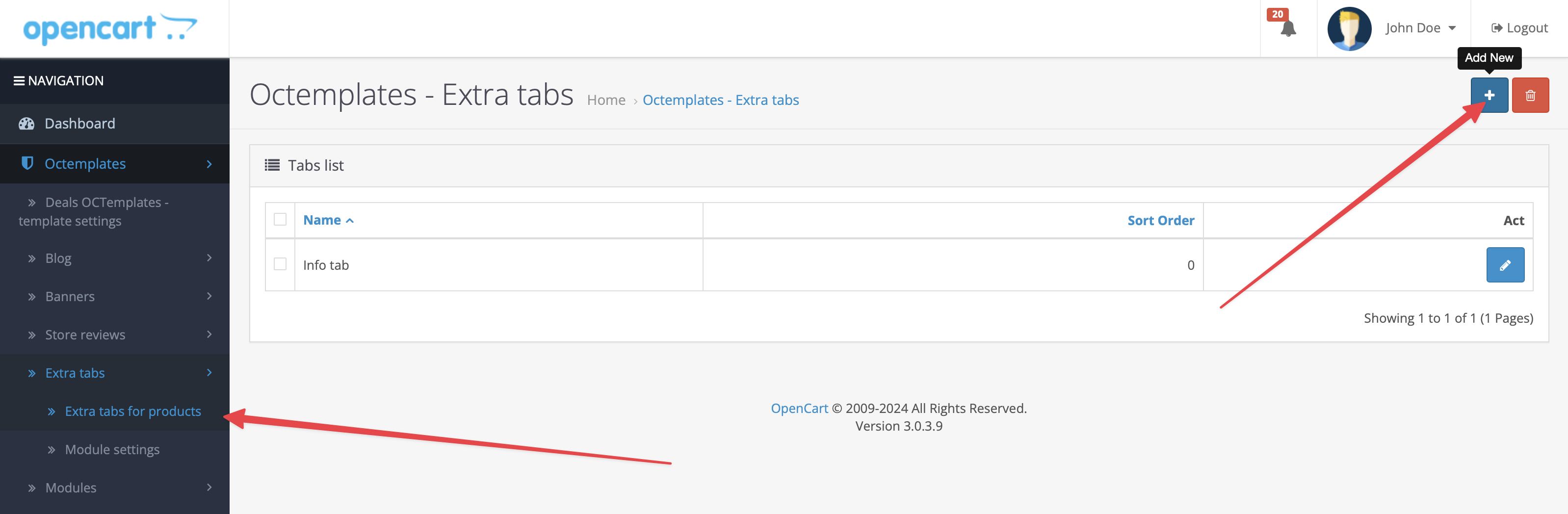
After that, go to "Additional Tabs" - "Additional Product Tabs". Click "Add" in the upper-right corner of the page.
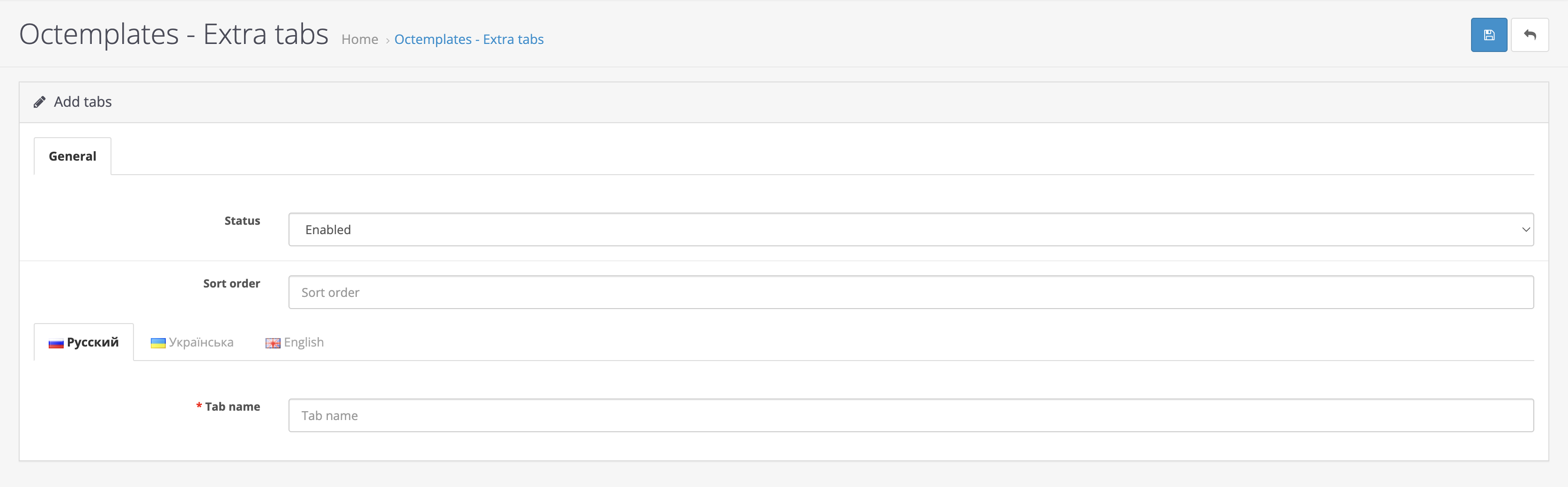
On the page that opens, you will see the following fields:
- "Status" — allows you to enable or disable the tab;
- "Sort order" — allows you to sort additional tabs in the required order;
- "Tab name" — allows you to enter the tab name that will be shown to store visitors.
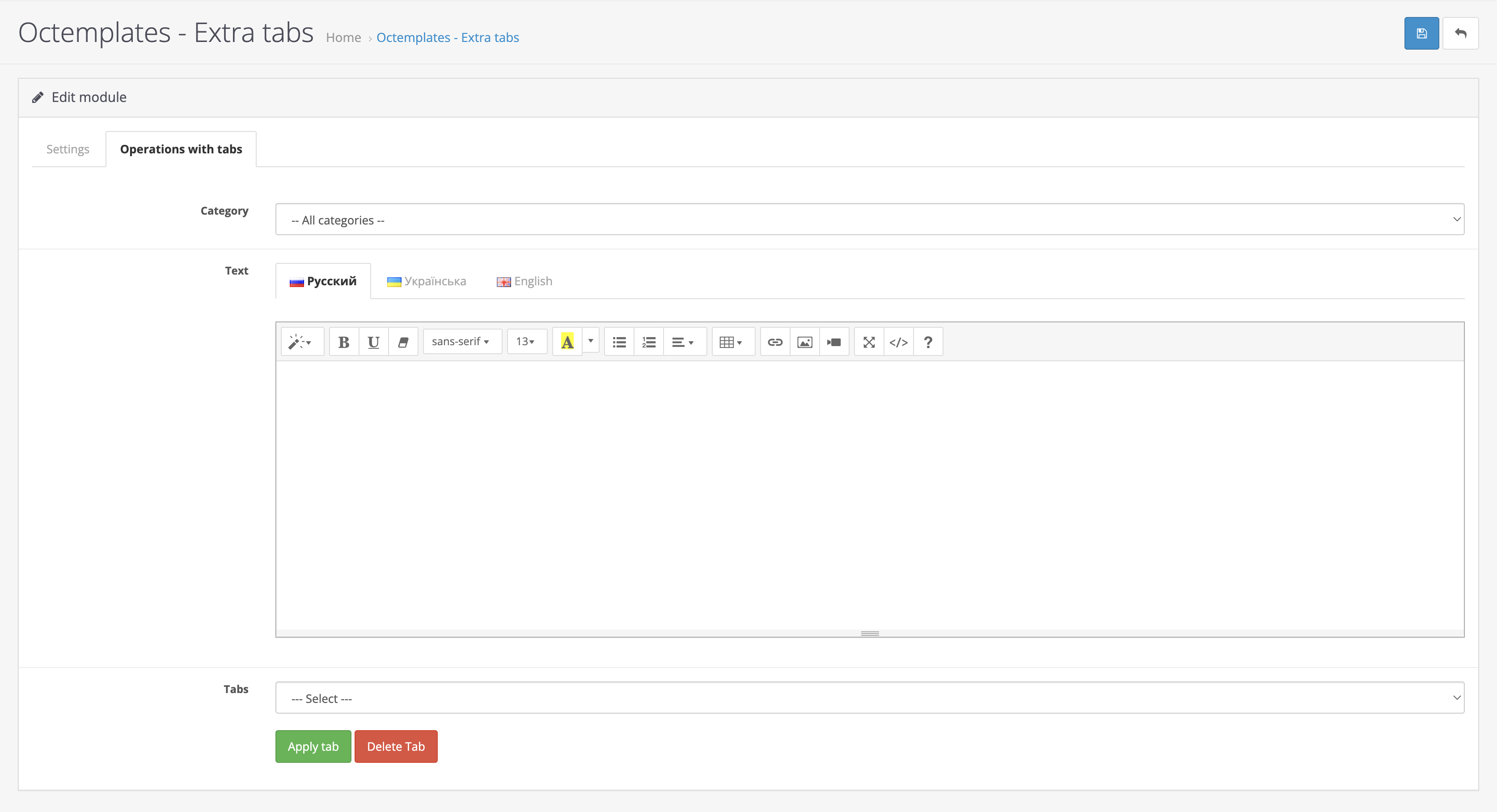
To configure the module, go to "Additional Tabs" - "Module Settings".
The following settings will be available here:
- In the "Settings" tab, you can enable or disable the module;
- In the "Tab Operations" tab, the following settings are available:
- "Category" — allows you to select the category where additional tabs will be displayed on product pages;
- "Text" — allows you to add or edit the content of additional tabs;
- "Tabs" — allows you to select a previously created tab from "Additional Tabs" - "Additional Product Tabs";
- "Apply tab" — allows you to save the changes;
- "Delete tab" — allows you to delete tabs.
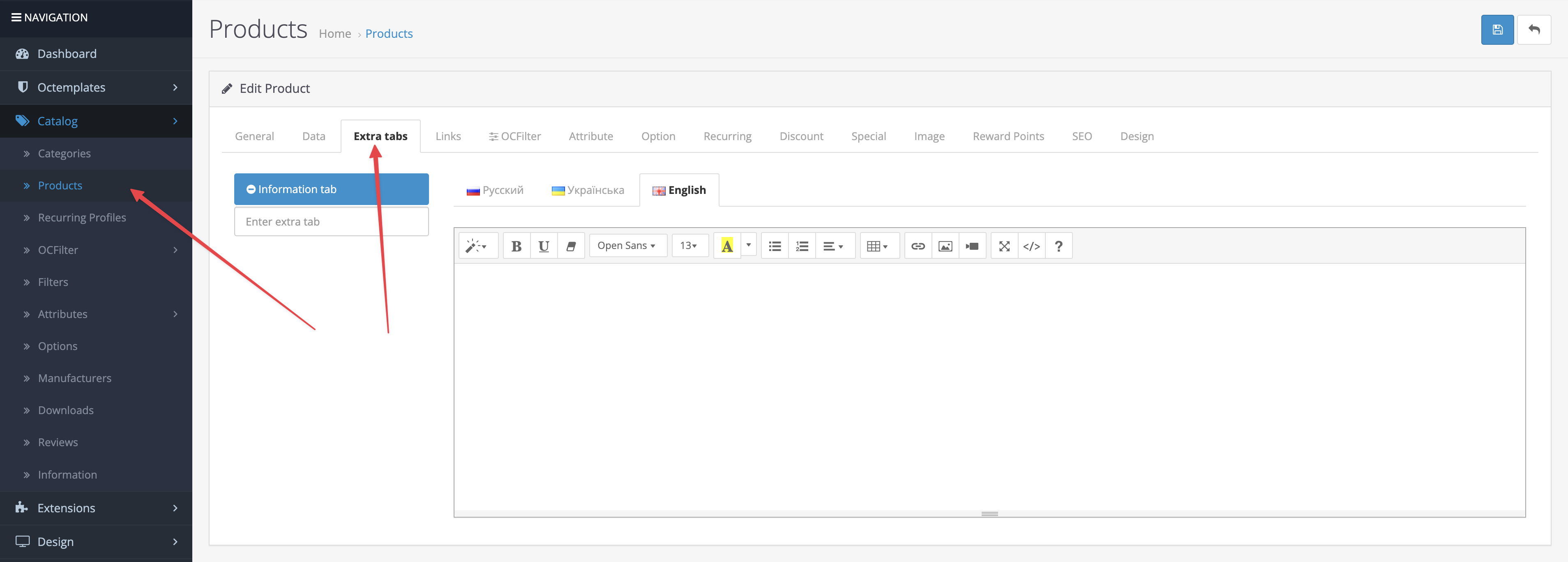
The tab content can be added or edited in the admin panel for each individual product in the "Additional Tabs" tab.
Write a comment