
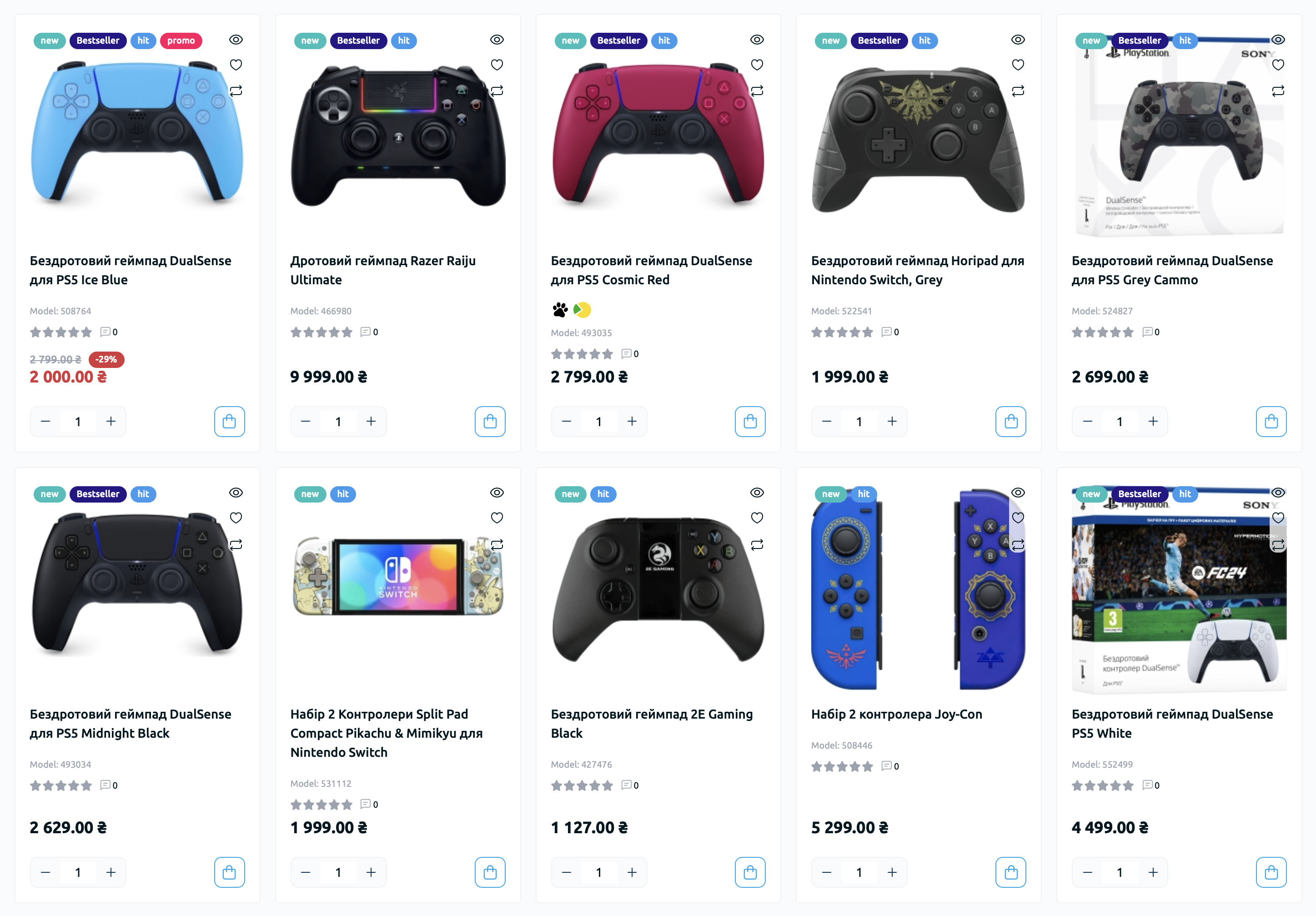
The "Product Stickers" module allows you to display product stickers on the "Product Category" and "Product Card" pages, as well as in the "Specials", "New Arrivals", "Products from Categories", "Recommended", and "Bestsellers" modules. Stickers have flexible settings and are used to motivate store customers to purchase specific products.
Starting from version 1.7.0, for additional optimization, stickers are generated into a special table and automatically updated using a CRON task.
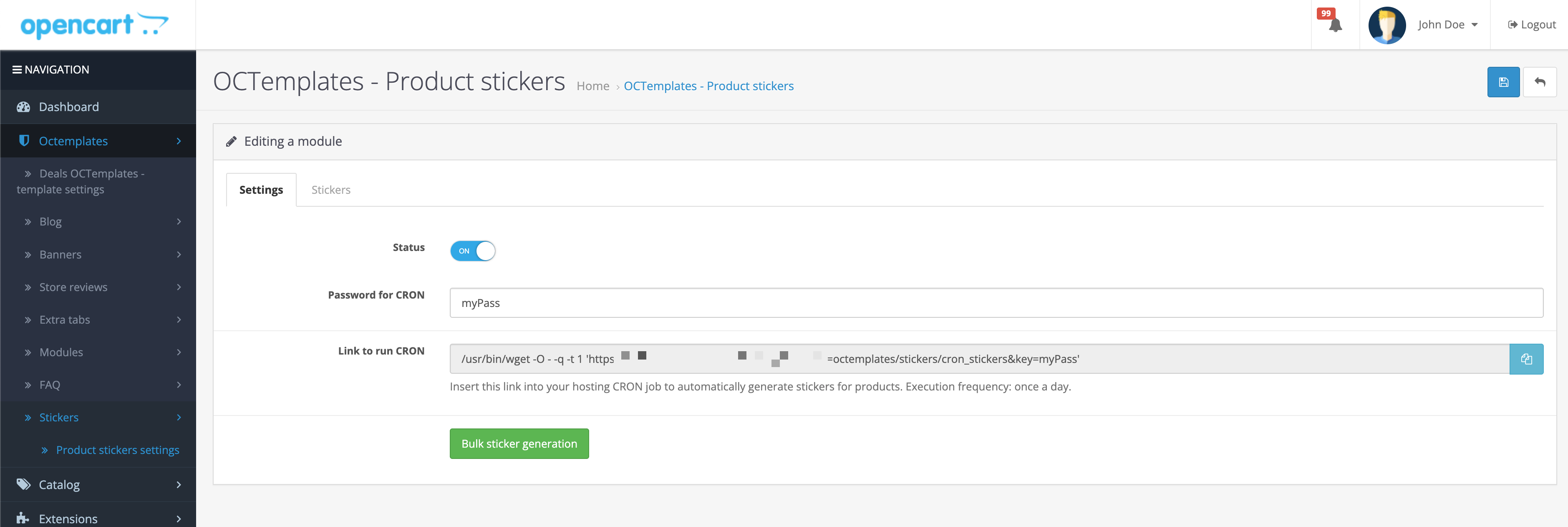
To configure the module, go to "Stickers" - "Sticker Settings" in the left admin menu. Two tabs will be available here.
In the "Settings" tab, you can enable or disable the module.
Create a CRON password, save the settings, and add a CRON task on your hosting or server to run once per day.
After that, automatic sticker generation and updates when editing products will also become available.
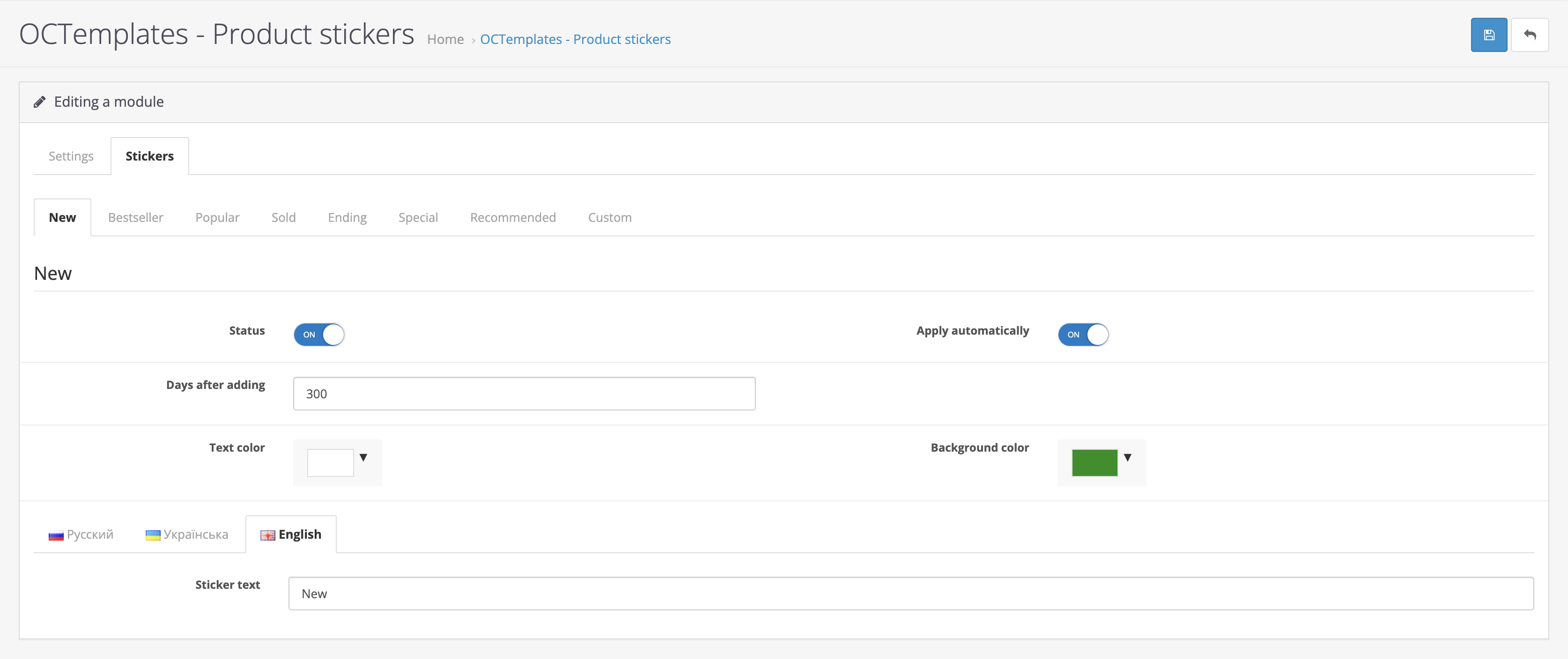
In the "Stickers" tab, 8 tabs will be available.
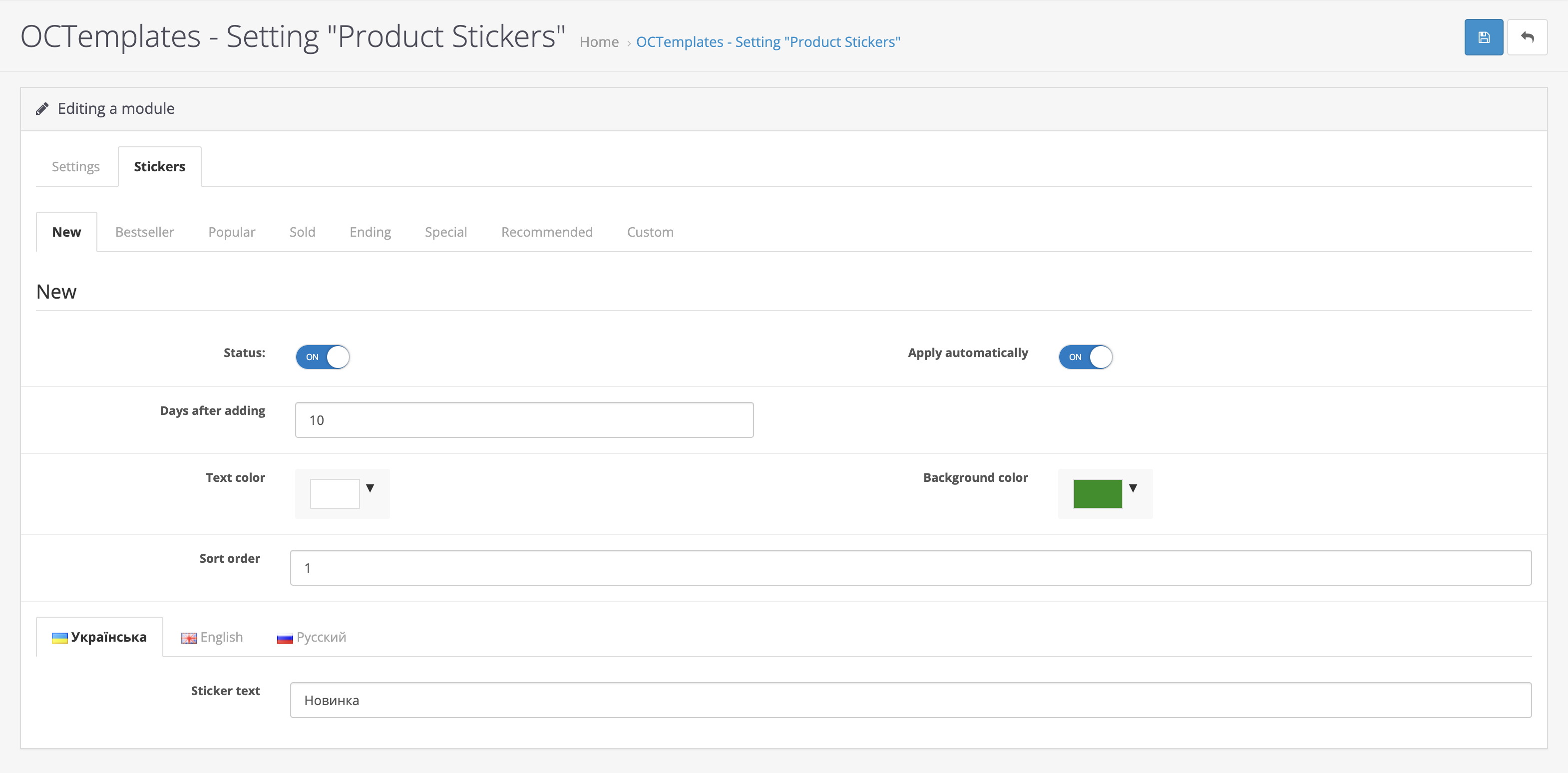
The "New" tab contains the following settings:
- "Status" — allows you to enable or disable the sticker;
- "Apply automatically" — allows stickers to be applied to products automatically. If the setting is disabled, the sticker must be selected manually when editing the product;
- "Days after adding" — allows you to set the number of days after adding the product during which the sticker will be displayed;
- "Text color" — allows you to set the sticker text color;
- "Background color" — allows you to set the sticker background color;
- "Sticker text" — allows you to enter the sticker text.
The "Free Shipping" tab contains the following settings:
- "Status" — allows you to enable or disable the sticker;
- "Apply automatically" — allows stickers to be applied to products automatically. If the setting is disabled, the sticker must be selected manually when editing the product;
- "Amount from" — allows you to set the product amount from which the sticker will be shown;
- "Text color" — allows you to set the sticker text color;
- "Background color" — allows you to set the sticker background color;
- "Sticker text" — allows you to enter the sticker text.
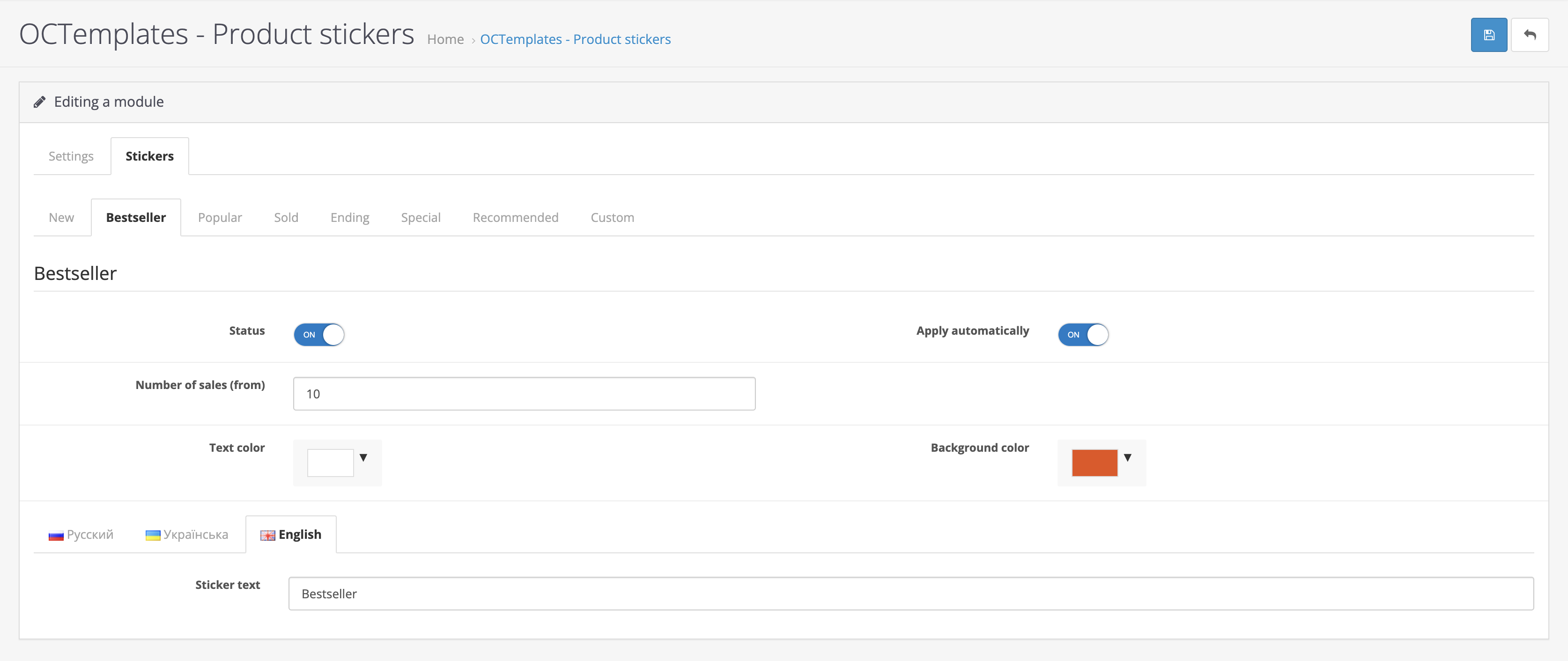
The "Bestseller" tab contains the following settings:
- "Status" — allows you to enable or disable the sticker;
- "Apply automatically" — allows stickers to be applied to products automatically. If the setting is disabled, the sticker must be selected manually when editing the product;
- "Sales count «From»" — allows you to set the number of product sales required to display the sticker;
- "Text color" — allows you to set the sticker text color;
- "Background color" — allows you to set the sticker background color;
- "Sticker text" — allows you to enter the sticker text.
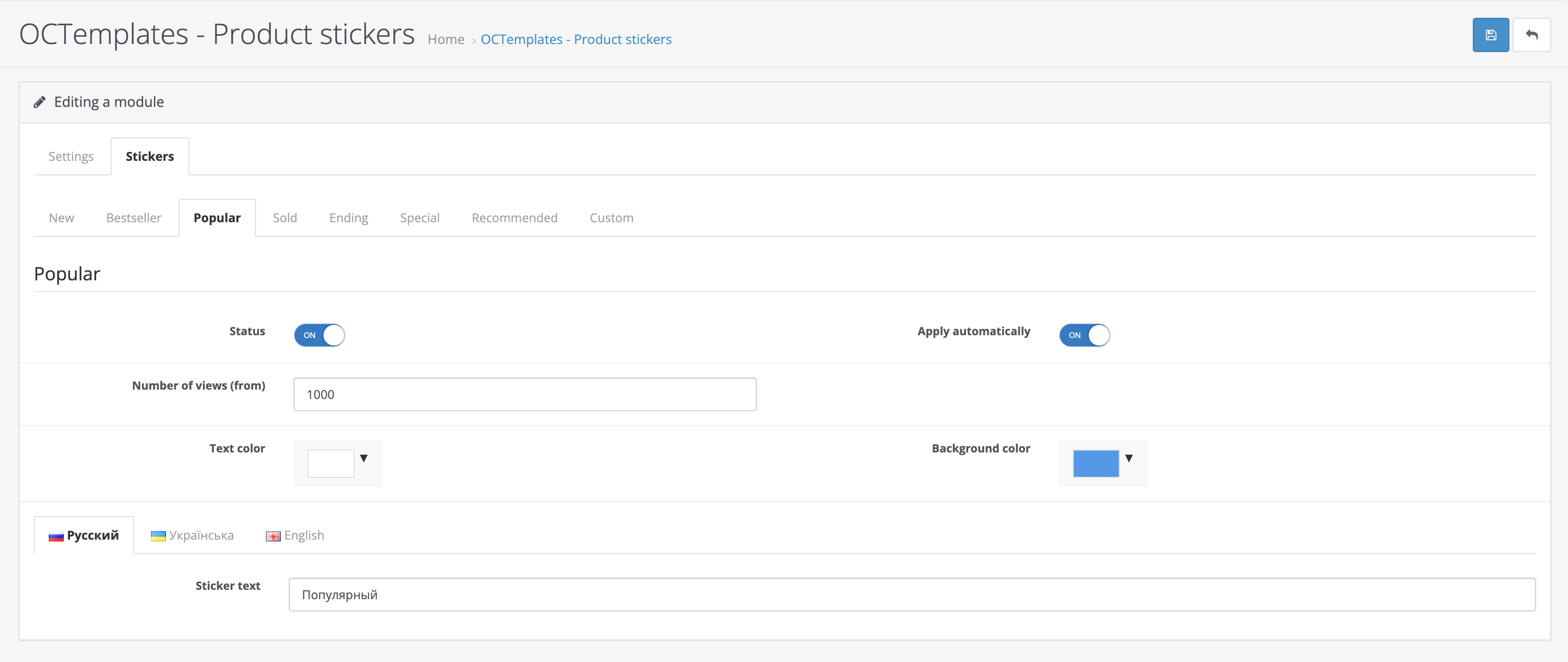
The "Popular" tab contains the following settings:
- "Status" — allows you to enable or disable the sticker;
- "Apply automatically" — allows stickers to be applied to products automatically. If the setting is disabled, the sticker must be selected manually when editing the product;
- "Views count «From»" — allows you to set the number of product views required to display the sticker;
- "Text color" — allows you to set the sticker text color;
- "Background color" — allows you to set the sticker background color;
- "Sticker text" — allows you to enter the sticker text.
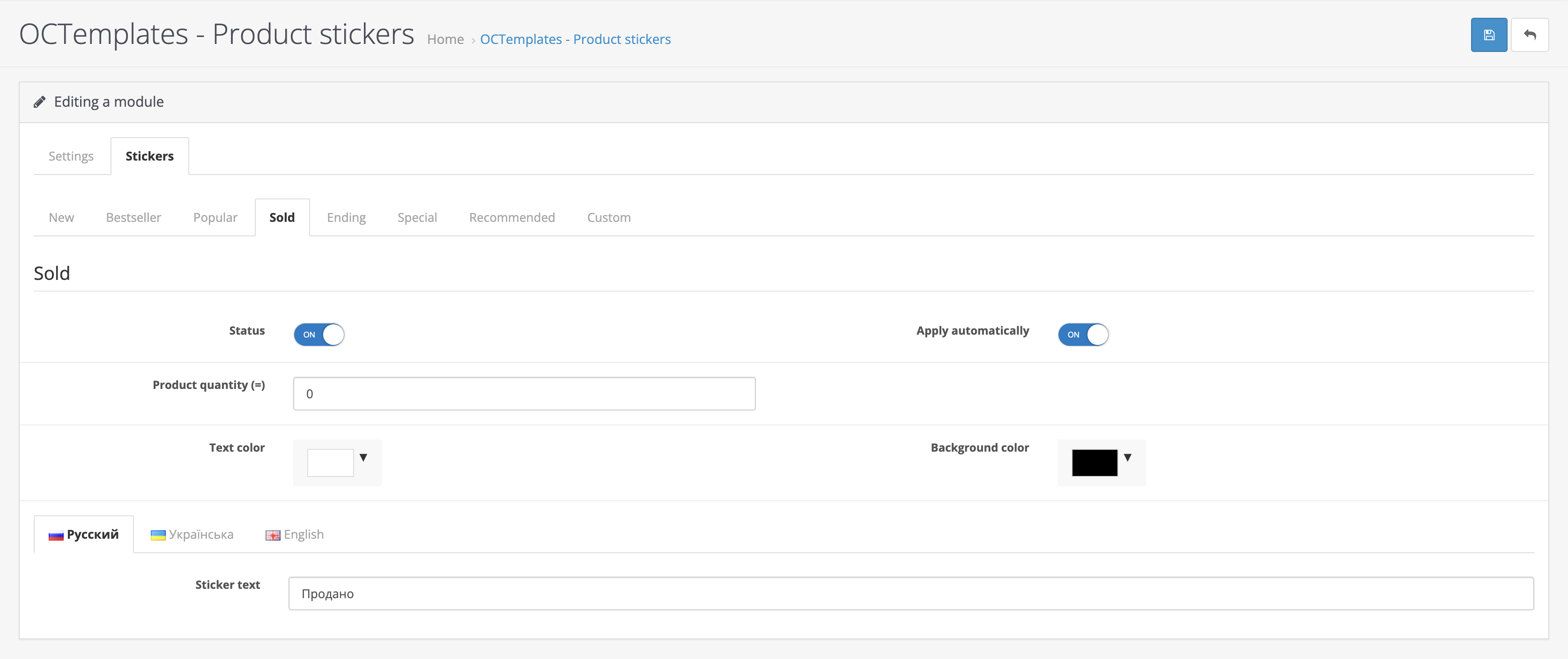
The "Sold Out" tab contains the following settings:
- "Status" — allows you to enable or disable the sticker;
- "Apply automatically" — allows stickers to be applied to products automatically. If the setting is disabled, the sticker must be selected manually when editing the product;
- "Product quantity «=»" — allows you to set the product stock quantity for displaying the sticker. Recommended value is 0;
- "Text color" — allows you to set the sticker text color;
- "Background color" — allows you to set the sticker background color;
- "Sticker text" — allows you to enter the sticker text.
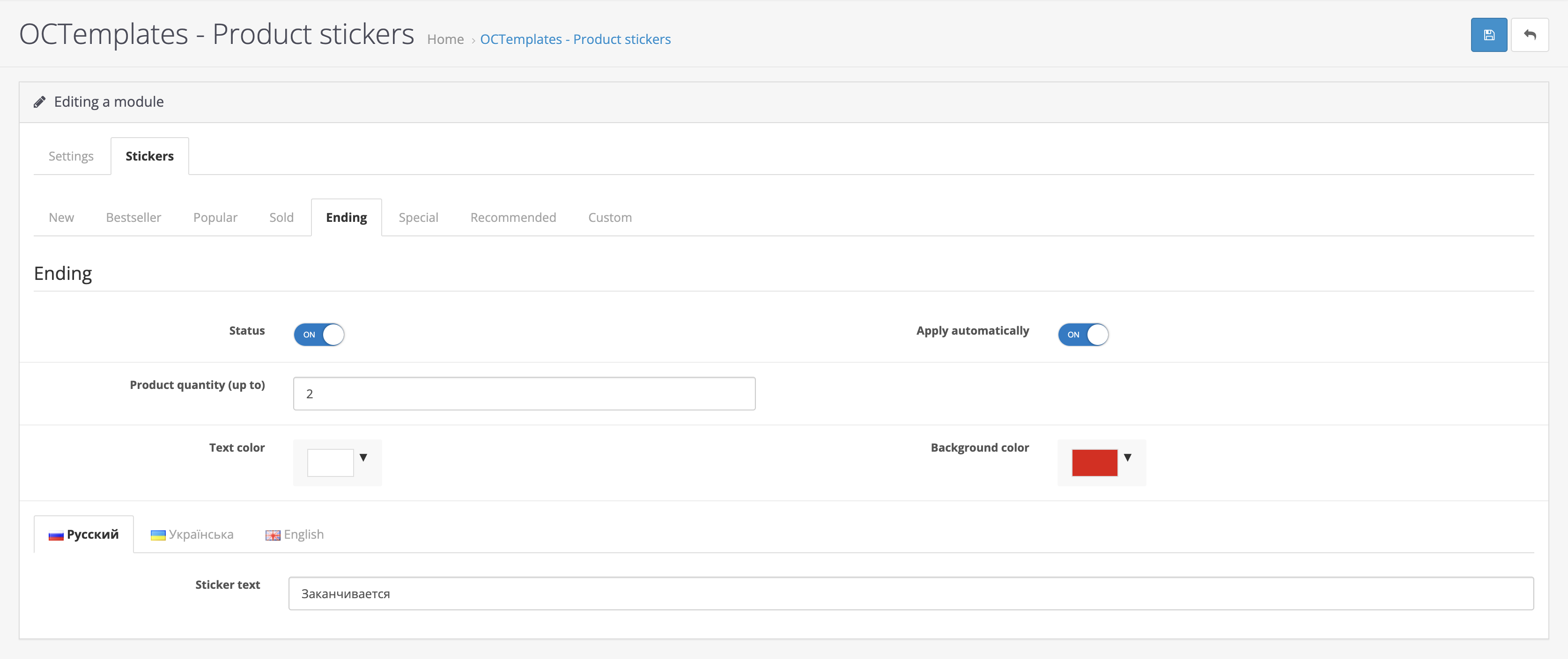
The "Almost Gone" tab contains the following settings:
- "Status" — allows you to enable or disable the sticker;
- "Apply automatically" — allows stickers to be applied to products automatically. If the setting is disabled, the sticker must be selected manually when editing the product;
- "Product quantity «To»" — allows you to set the product stock quantity for displaying the sticker;
- "Text color" — allows you to set the sticker text color;
- "Background color" — allows you to set the sticker background color;
- "Sticker text" — allows you to enter the sticker text.
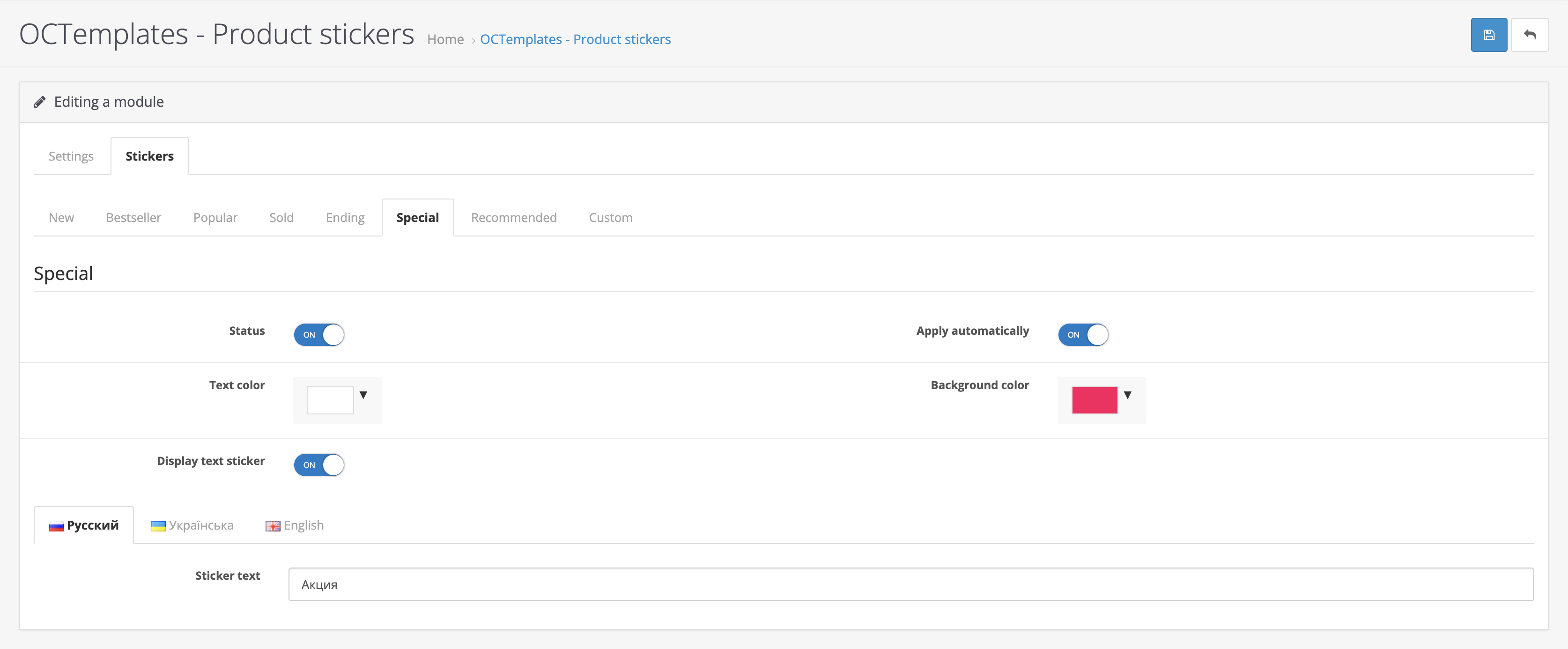
The "Special" tab contains the following settings:
- "Status" — allows you to enable or disable the sticker;
- "Apply automatically" — allows stickers to be applied to products automatically. If the setting is disabled, the sticker must be selected manually when editing the product;
- "Text color" — allows you to set the sticker text color;
- "Background color" — allows you to set the sticker background color;
- "Show text sticker" — allows you to disable the text sticker and show only the sticker with the discount percentage;
- "Sticker text" — allows you to enter the sticker text.
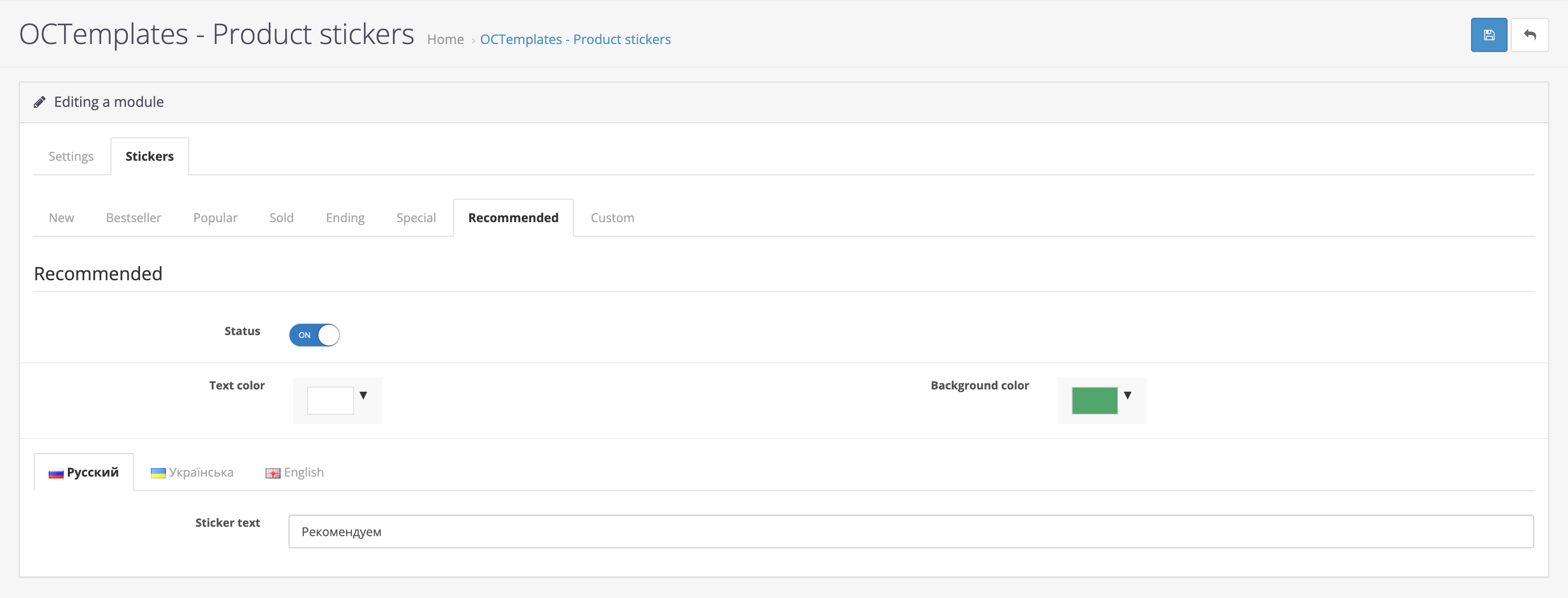
The "Recommended" tab contains the following settings:
- "Status" — allows you to enable or disable the sticker;
- "Text color" — allows you to set the sticker text color;
- "Background color" — allows you to set the sticker background color;
- "Sticker text" — allows you to enter the sticker text.
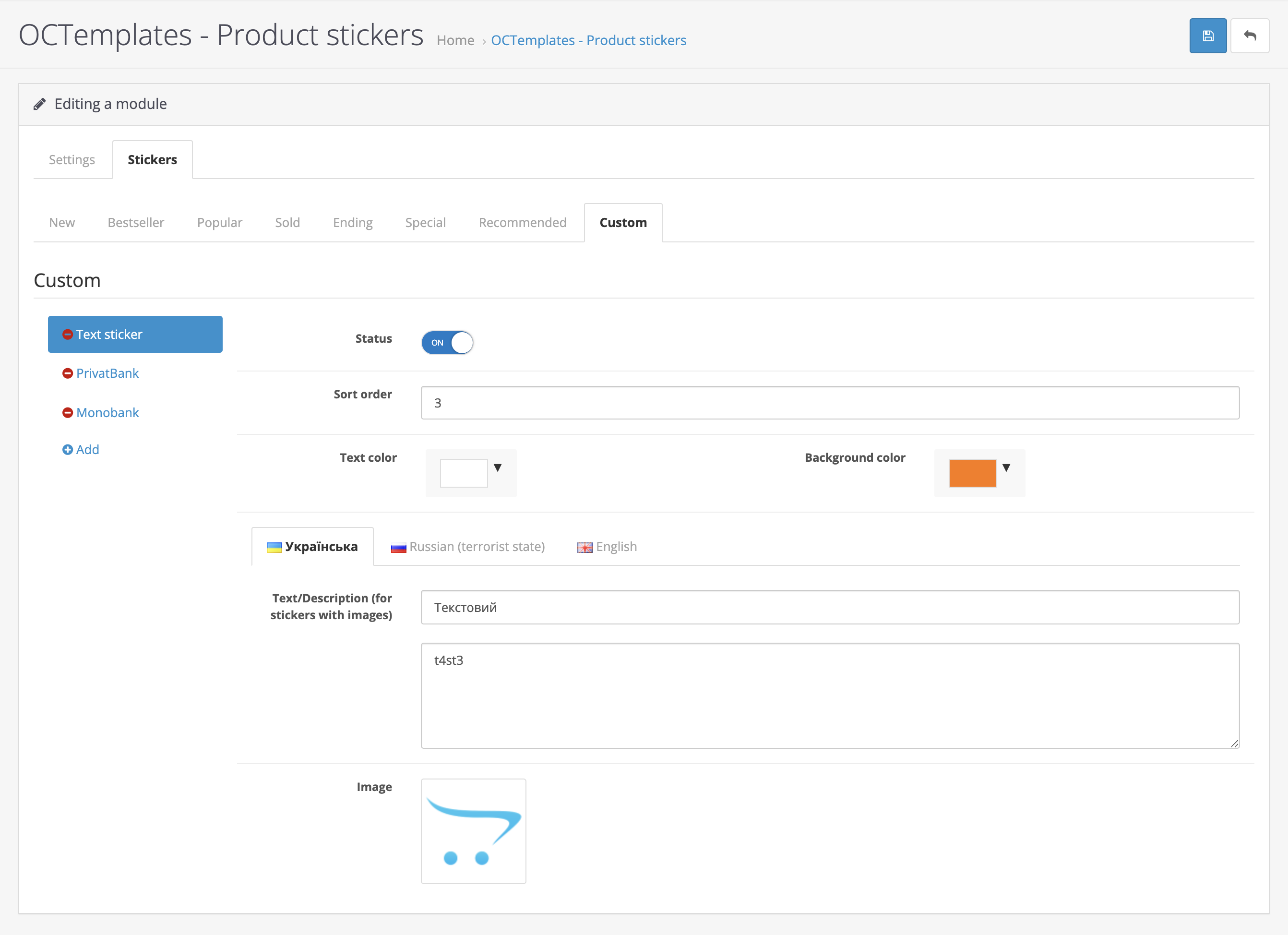
In the "Custom" tab, you can create custom stickers and add image stickers with hints in a popover that appears on hover or click on the sticker. To add a sticker, click the "Add" button. After that, the following settings will become available:
- "Status" — allows you to enable or disable the sticker;
- "Sort order" — allows you to sort stickers;
- "Text color" — allows you to set the sticker text color;
- "Background color" — allows you to set the sticker background color;
- "Sticker text" — allows you to enter the sticker text. If you are configuring an image sticker, the sticker name will be shown in the popover that appears on hover or click on the sticker;
- "Description «For image stickers»" — allows you to enter the sticker description text, which will be shown in the popover that appears on hover or click on the sticker;
- "Image" — allows you to upload a file for the image sticker.
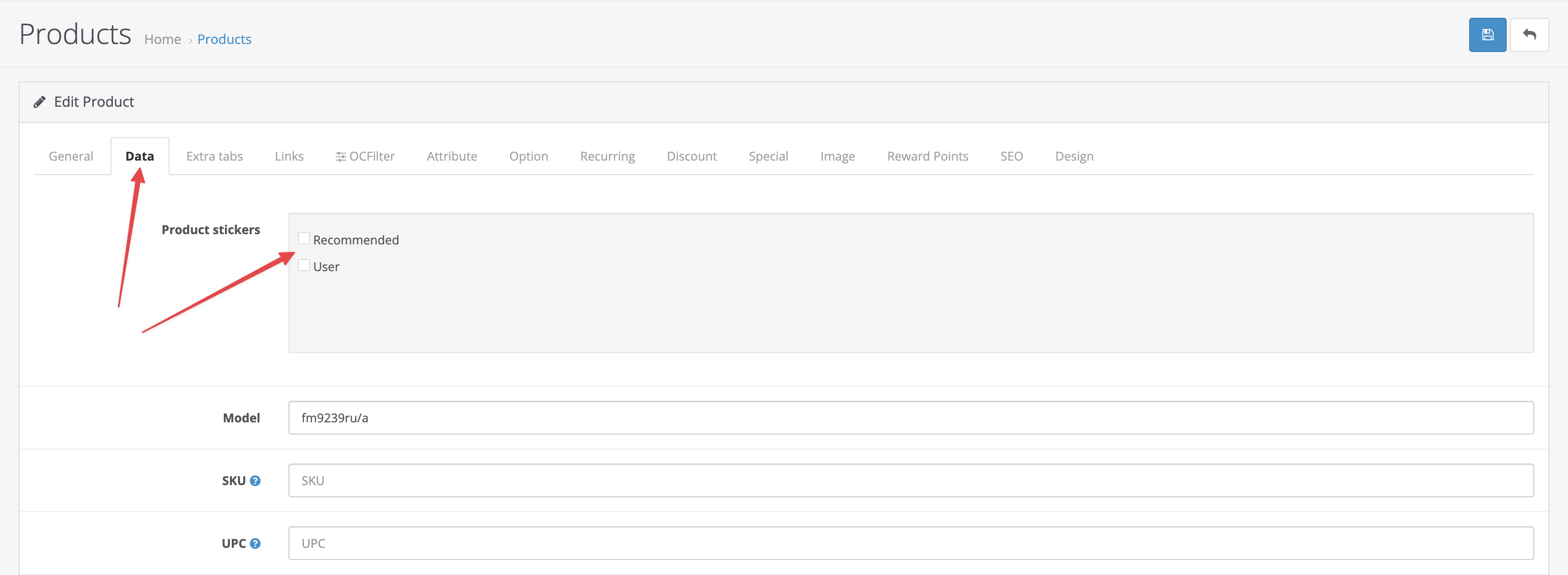
After adding custom stickers, you can select and assign stickers to the required product when editing the product.
The "Stickers" field will appear in the "Data" tab.
Write a comment