
A special module is used to configure e-commerce tracking and "Google Analytics" analytics.
You no longer need to embed events and goals into the template code, everything happens automatically.
This module allows you to get a more accurate picture of your online store activity, track the quality of any traffic channel, identify popular categories, and see sales of popular products or popular manufacturers.
The module contains a minimum number of settings and, in addition to e-commerce, allows you to quickly and easily configure goal tracking for any buttons in your online store using class selectors or the button id.
If you plan to use this module, you must disable previously installed Google Analytics counters. This is because the module automatically inserts the template tracking code.
E-commerce allows you to track:
- Popular products, categories, and brands;
- Ordered products.
As a demonstration, this article shows how to configure goals for the following events:
- Click on the "Add to cart" button;
- Click on the "Callback" button;
- Click on the "Buy in one click" module button;
- Click on the "Checkout" button in the quick checkout module.
Please note! This is a demonstration of how you can easily create goal sending when almost any static element on your site is clicked. Goals are sent to analytics only when clicking a button or link that opens a form. To do this, you need to specify the selector of the required element you want to track. More about selectors: https://css.in.ua/css/selectors. Goals are not sent when filling out or submitting forms that were loaded dynamically, for example from a "Callback" pop-up form.
To activate the module, go to "Modules" - "Analytics" and activate the "Analytics & E-commerce" module.
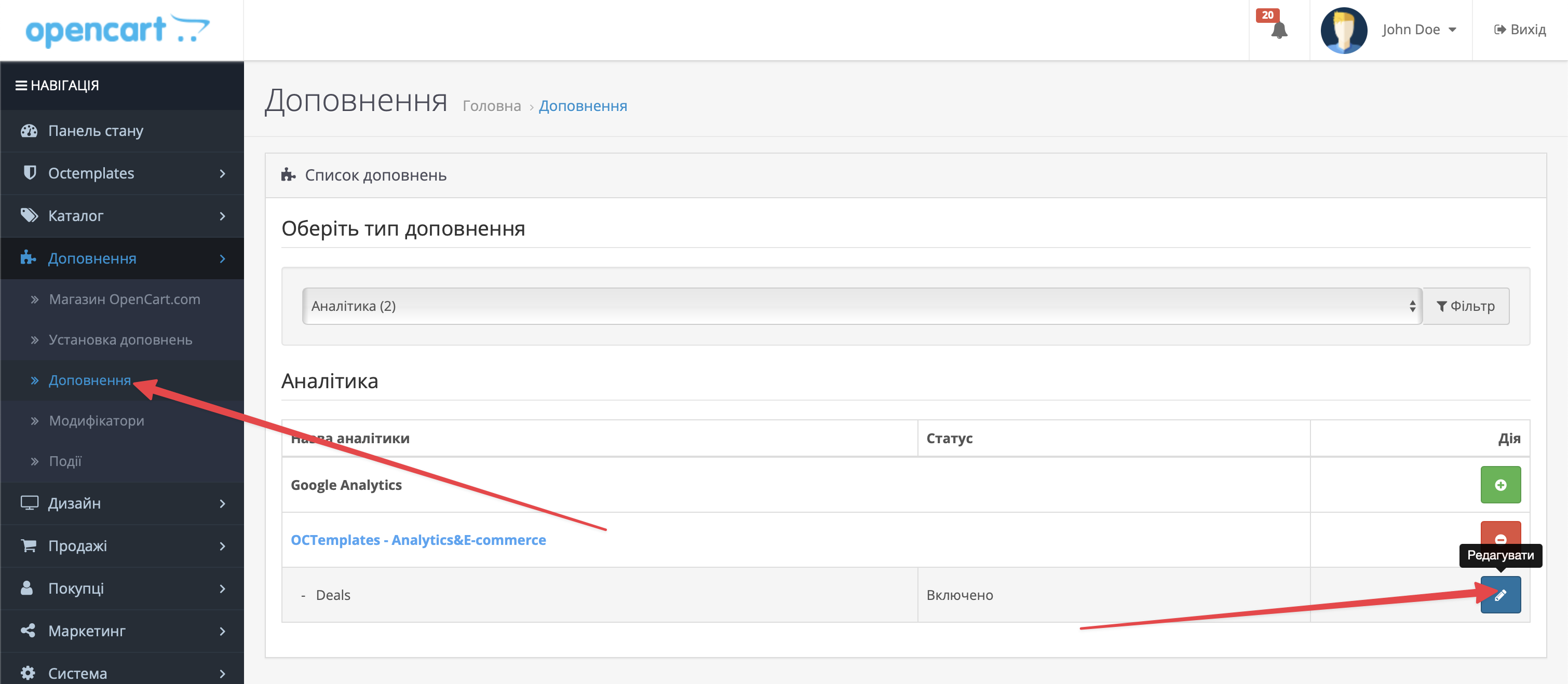
Setting up e-commerce and goals in "Google Analytics"
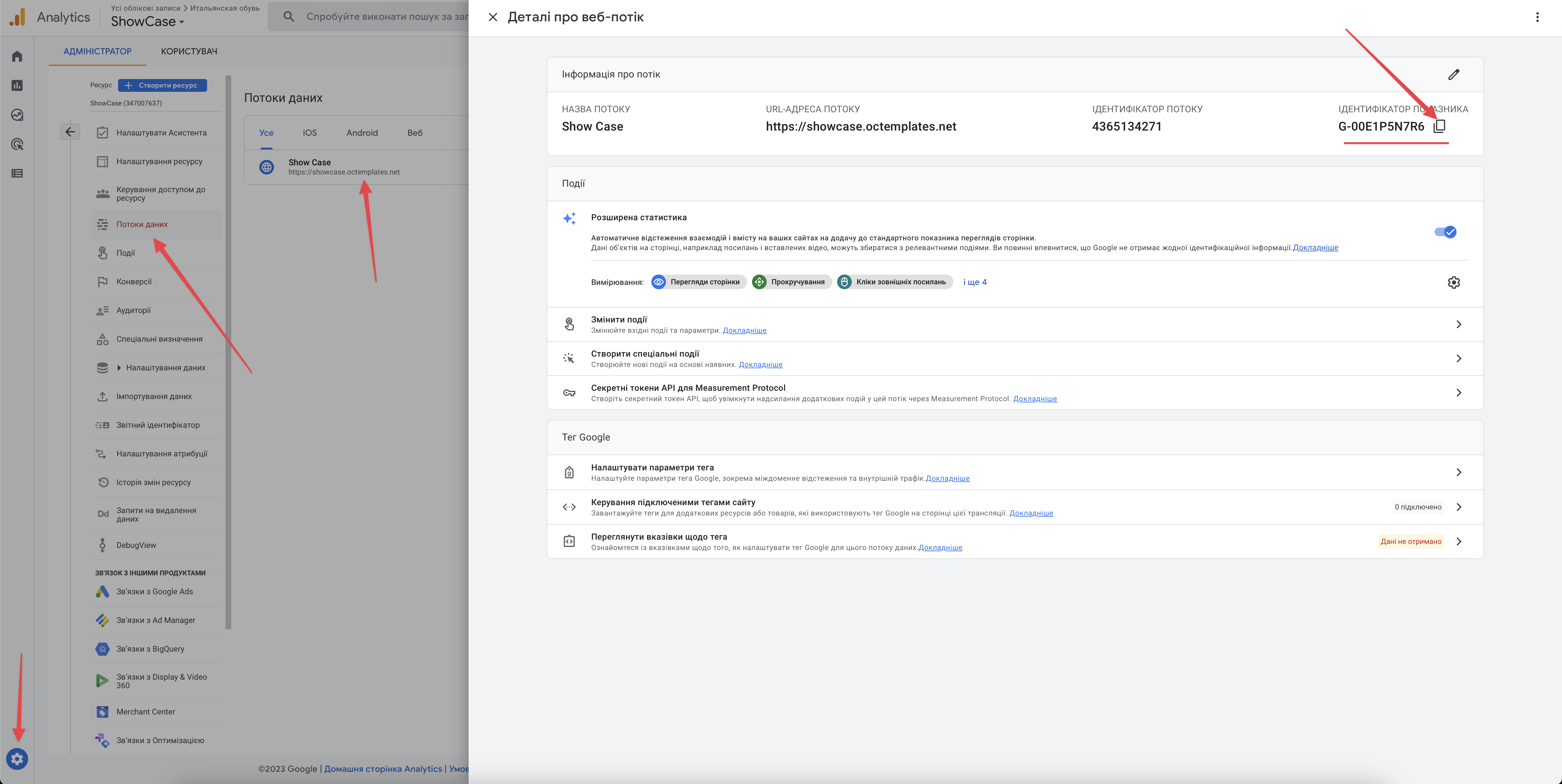
Copy the tracking ID in Google Analytics and complete several steps.
1. Log in to your Google Analytics account and create a new property.
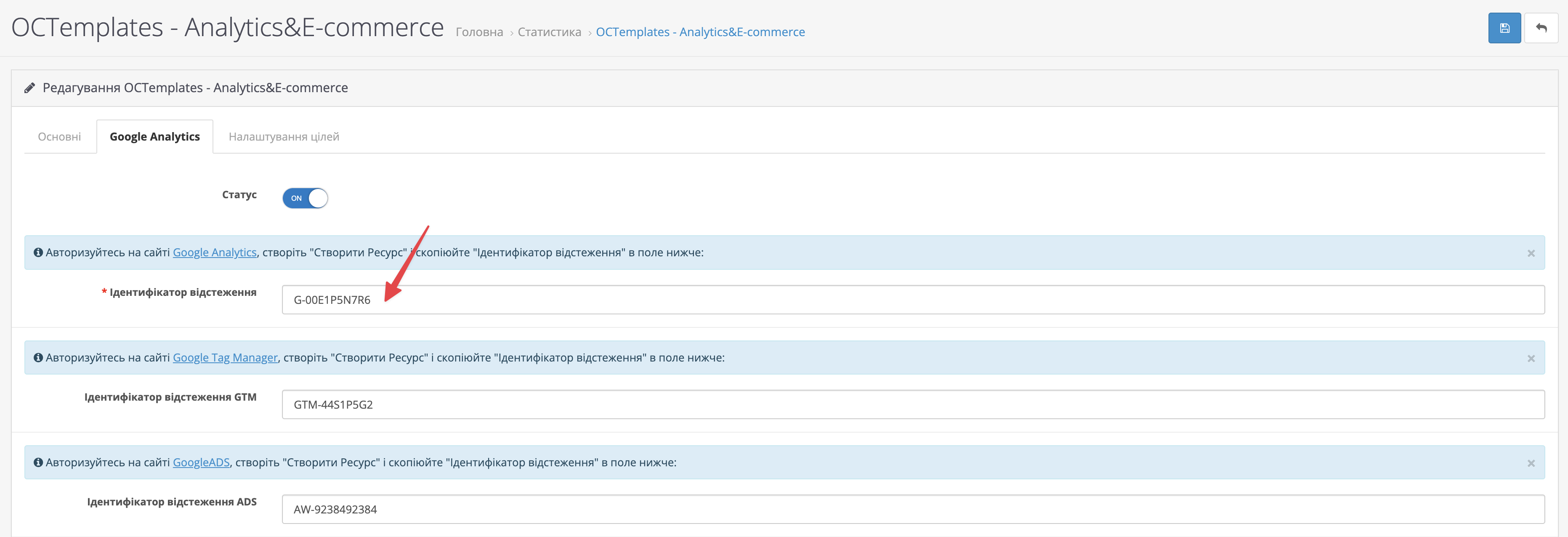
2. Save the Google Analytics settings in the analytics module.
3. Go to the "Analytics & E-commerce" module settings and open the "Goal settings" tab.
Add 4 goals by specifying the following data, then save the module settings:
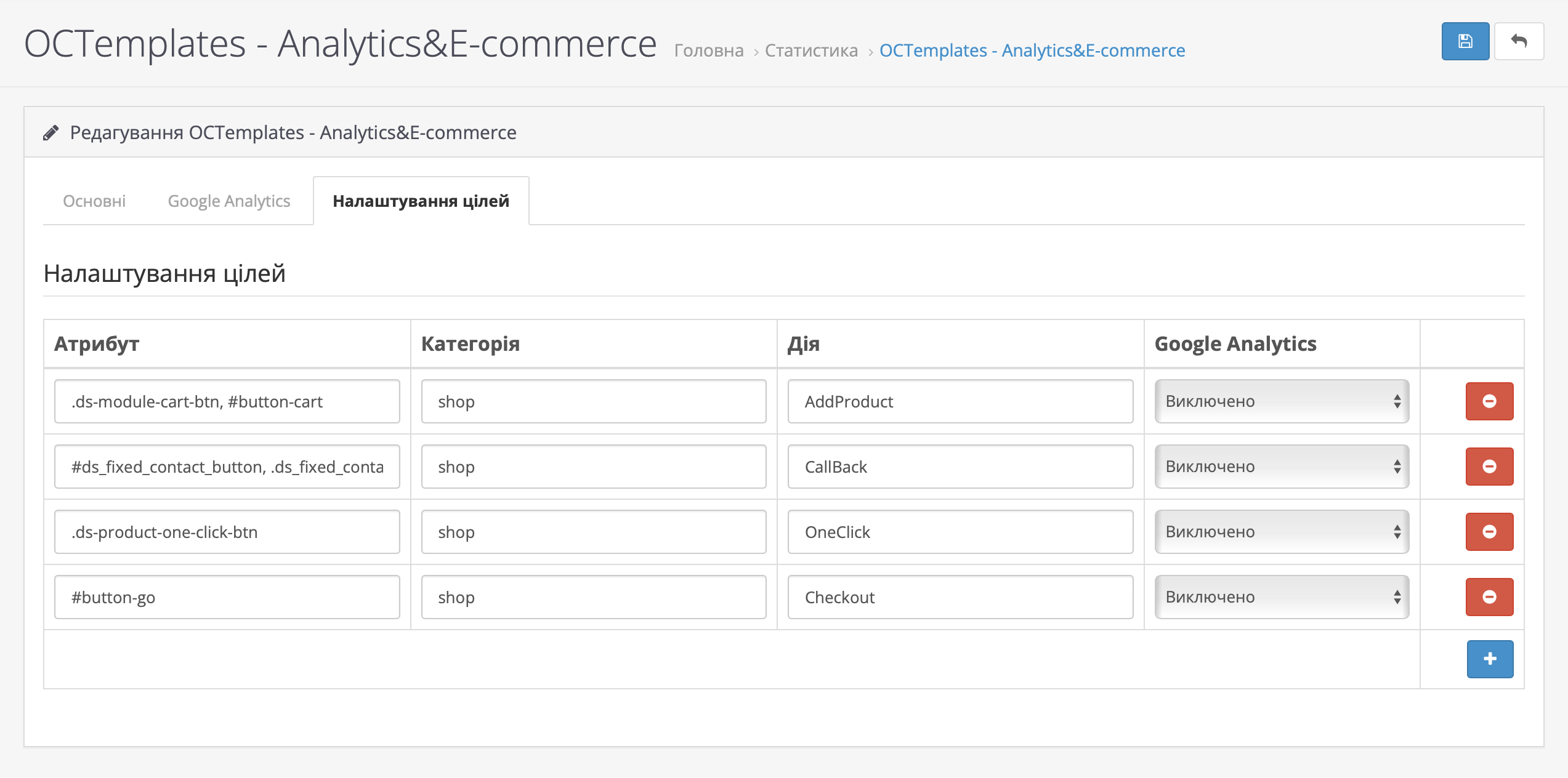
1. Add to cart
Attribute:
.ds-module-cart-btn, #button-cartAction:
AddProduct2. Callback
Attribute:
#ds_fixed_contact_button, .ds_fixed_contact_button, #uptocall-mini, .ds-dropdown-contacts-buttonAction:
CallBack3. Buy in one click
Attribute:
.ds-product-one-click-btnAction:
OneClick4. Checkout
Attribute:
#button-goAction:
Checkout
Now Google Analytics will receive data about the goals you added and e-commerce data.
Write a comment