
This module is designed to automatically send notifications to customers when a product that was previously out of stock becomes available in your store again. If the customer is logged in, a corresponding section will appear in their account, where they can view all their product availability notification requests, their statuses, and delete unnecessary requests if needed. The module tracks only the product quantity value quantity.
Functionality
- Automatic sending of product availability notification emails when editing a product or via CRON.
- Ability for customers to subscribe to notifications and manage subscriptions in their account.
- Ability for the store administrator to receive notifications about new requests from users.
- Ability to personalize the email text using a template.
Installation
- Log in to the OpenCart admin panel.
- In the left navigation panel, go to "Modules".
- Find the "Product Availability Notification" module in the list and open the module settings.
- Make sure that in the main OpenCart settings, in the "Options" tab, "Stock checkout" is disabled: https://share.cleanshot.com/m0nGn7Br.
Settings
There are 3 tabs available on the module settings page: "Settings", "Email template settings", and "Subscribers".
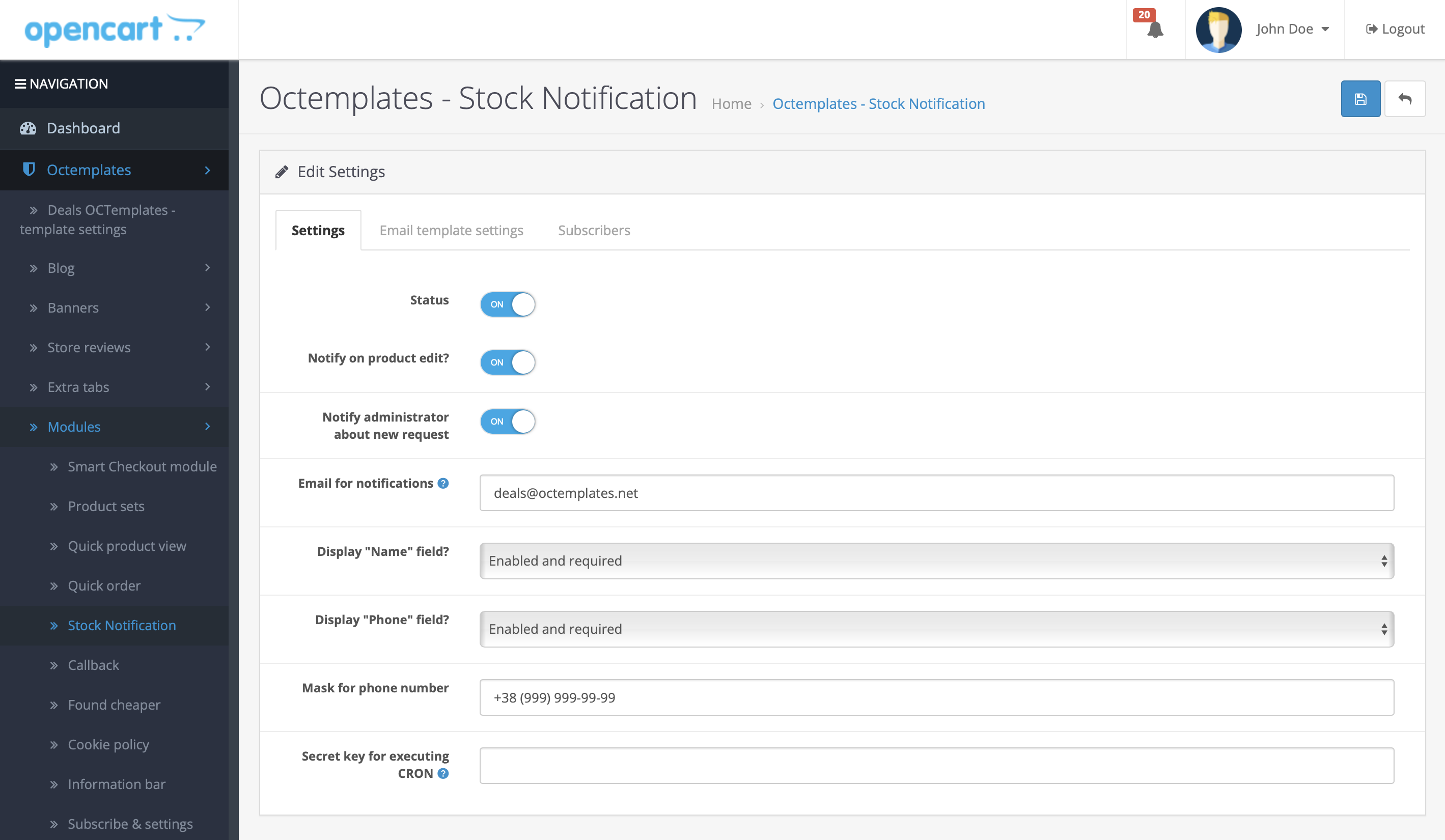
The following options are available in the "Settings" tab:
-
"Status" — allows you to enable or disable the module. If the option is enabled "ON", the module is active and working.
-
"Notify when editing product?" — if this option is enabled, customers will be able to receive notifications when a product is edited and its quantity changes.
-
"Send notification to administrator about a new request" — if this option is enabled, the administrator will receive notifications about new requests from customers.
-
"Email for notifications" — allows you to specify the email address where notifications will be sent.
-
"Show Name field?" — determines whether customers will have access to the field for entering their name.
-
"Show Phone field?" — determines whether customers will have access to the field for entering their phone number.
-
"Phone number mask" — defines the format in which customers must enter their phone number.
-
"Secret key for CRON execution" — if product stock levels in your store are updated through synchronization, we recommend configuring an automatic check of subscribers for product availability. To do this, specify the secret key used to authenticate CRON requests. After that, save the module settings and get the ready-made CRON settings.
-
"CRON task" — this command points to a specific URL where the CRON task will be executed, together with the secret key for authentication, which must be added in your hosting panel. The execution of this task can be configured depending on how often your product database is updated. Usually, this task is configured to run once per day.
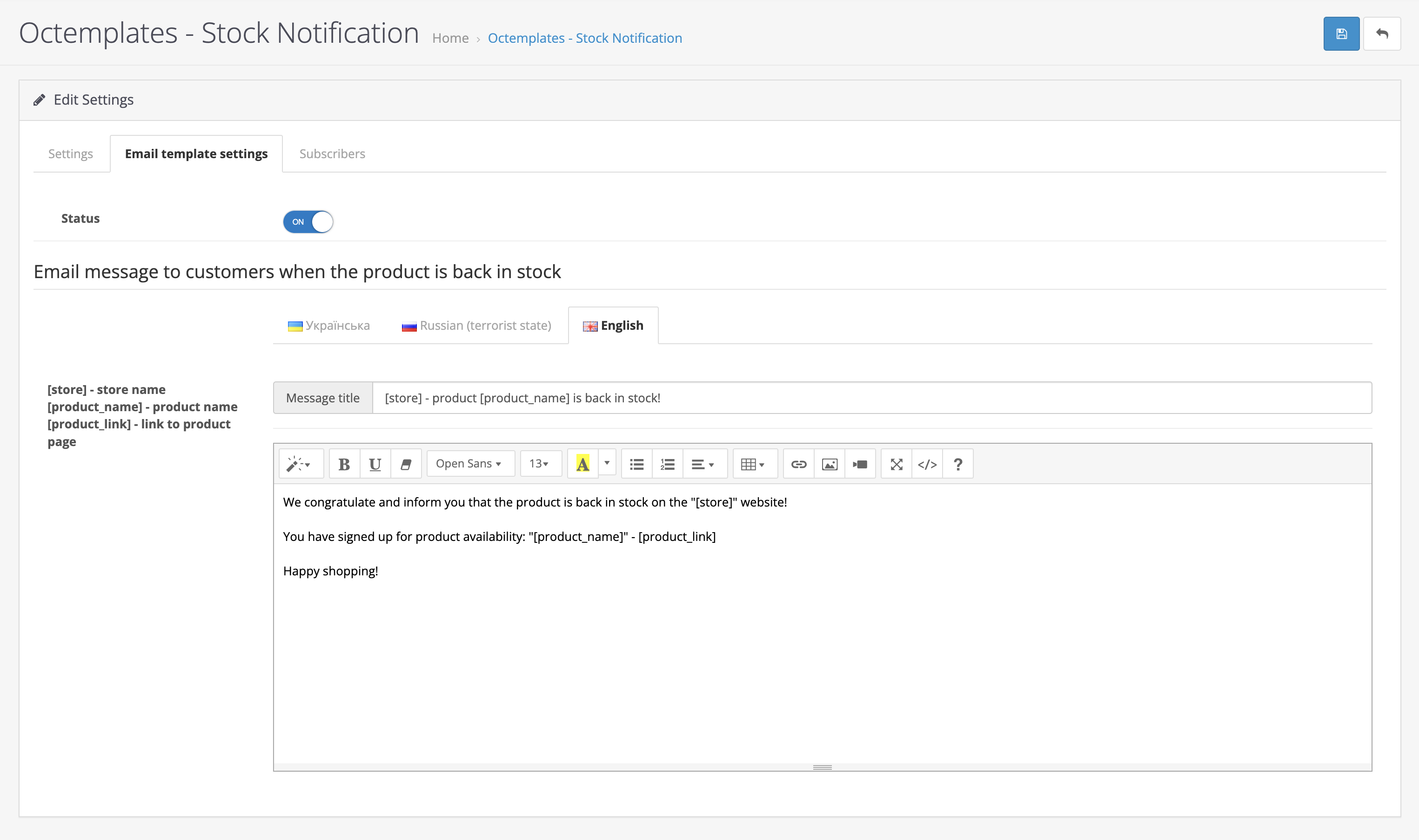
The following options are available in the "Email template settings" tab:
- "Status" — allows you to activate "ON" or deactivate "OFF" this function. When the status is enabled, customers will receive notifications by email. If the status is "OFF", the notification email body will be generated from the module localization files.
The "Customer notification email when product becomes available" section contains settings for sending notifications to customers when a product comes back in stock.
-
"Dynamic variables":
[store]— store name.[product_name]— product name.[product_link]— link to the product page.
-
"Message title" — in this field, you can specify the email subject text that will be sent to customers.
-
"Email text field" — in this field, you can edit the email text that will be sent to customers. Here you can use the previously mentioned dynamic variables to automatically insert information.
If your store has two or more localizations enabled, configure the corresponding fields in the localization tabs.
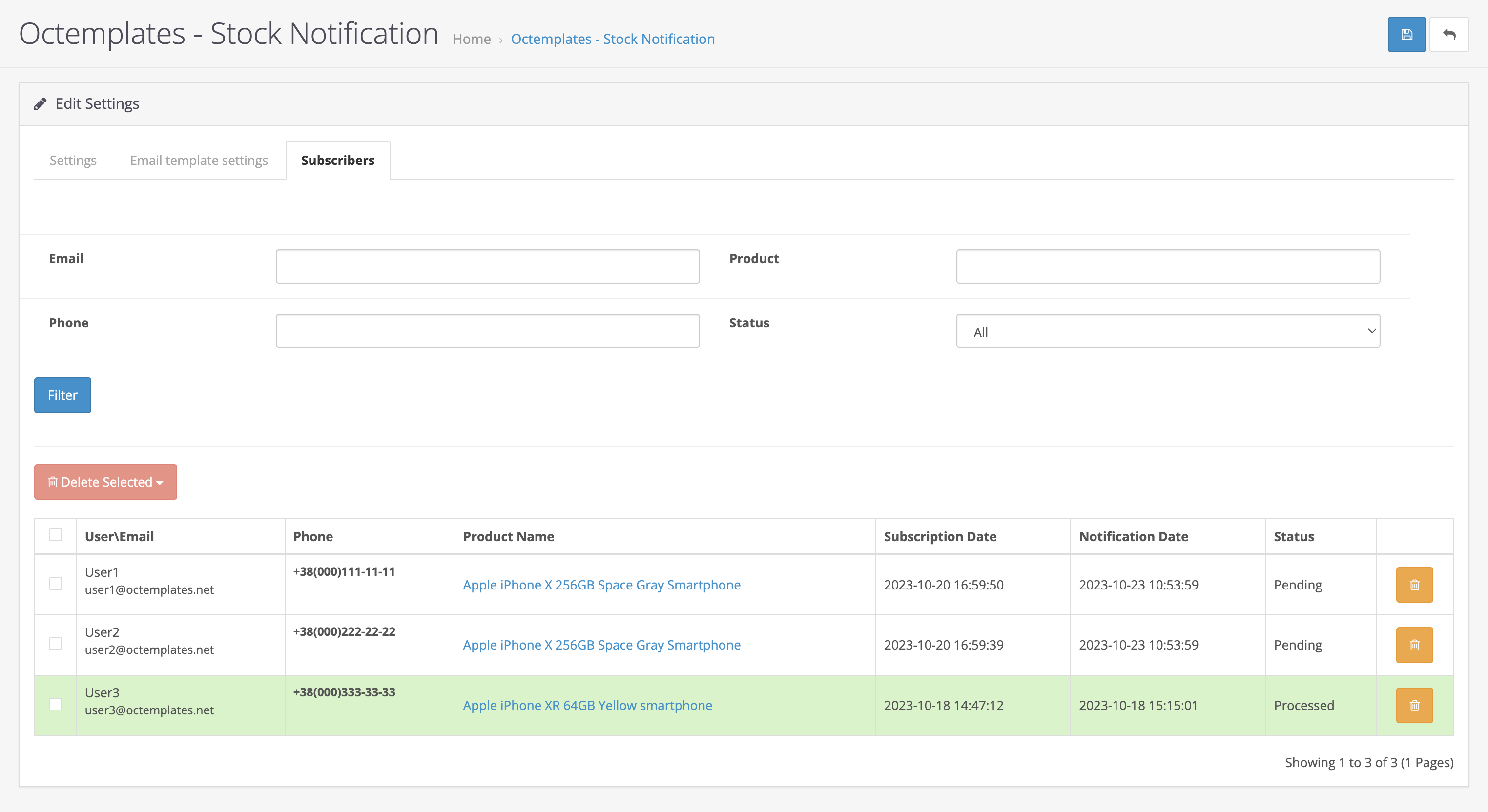
The following settings are available in the "Subscribers" tab:
Subscriber filtering:
- "Email" — field for entering or filtering by the subscriber's email address.
- "Product" — field for entering or filtering by the specific product to which the user subscribed.
- "Phone" — field for entering or filtering by the subscriber's phone number.
- "Status" — dropdown menu for filtering subscribers by their subscription status.
- "Filter" — button starts the process of filtering the subscriber list according to the entered parameters.
- "Delete selected" — button allows you to delete selected records from the subscriber list.
Subscriber list
All subscribers and information about them are shown here.
- "User / Email" — subscriber name and email address.
- "Phone" — subscriber phone number.
- "Product name" — the product the customer subscribed to.
- "Subscription date" — time and date when the customer subscribed to the product.
- "Notification date" — time and date when the customer was sent a product notification.
- "Status" — current customer subscription status.
Write a comment